Build an app with AI
You can describe an app in plain English and have an AI assistant write the whole GDN app for you, both files. You don't have to know how to code. The key is giving the AI the right context up front so it writes real GDN code instead of guessing from another platform.
Building with AI is iterative: you reprompt for changes, and you edit the code yourself too, until it looks right. The movies walkthrough shows that loop end to end.

Two ways to do this
| In your browser | Connected via MCP | |
|---|---|---|
| Tools | ChatGPT, Claude | Claude Code, Claude Desktop, Codex CLI, Cursor… |
| Setup | None | A one-time install |
| How it works | Paste the prompt, copy the files back | The AI runs the GDN toolkit itself |
| Can the AI see the panel? | No — you preview in Studio | Yes — renders come back to it as images |
| Best for | Getting started | Everything after that |
If you're not sure, start in the browser — there's no setup, and this page walks that path start to finish. When you want the AI to run the whole loop itself (render, look, fix, validate, no copy-pasting), connect it: Connect your AI (MCP).
An app is just two files
Every GDN app is a folder with two files:
| File | What it is |
|---|---|
manifest.yaml | The settings: the app's name, size, how often it refreshes, and the input form the user fills in. |
app.star | The picture: Starlark (Python-like) code that draws each screen. |
See App fundamentals for the whole model. The AI writes both files; you review and preview them.
Step 1: give the AI the prompt
Open The AI prompt, copy the box, and paste it into your chat before you describe your app. It teaches the assistant the platform's rules in one go, so it writes real GDN code instead of guessing.
Step 2: describe your app
Right after the prompt, say what you want. A sentence works, but naming your inputs and the panel width gets you a better result:
Build me a GDN app that shows <what it shows>, with inputs for <the settings a
user should be able to change>. Target a 128x32 panel. Use helpers where they fit.
For example:
Build me a GDN app that shows a habit streak: a big day-count with a small label
and a progress bar toward a goal. Inputs: the habit name and the goal number.
Then say how it should look. The prompt tells the AI to ask for your layout before it writes code — have an answer ready. A sketch, a photo of a napkin, or a line per zone all work:
Layout: the day count huge on the left, the habit name small above it, the progress
bar along the bottom. Green on black; the bar turns amber under 50%.
That's the one step that keeps AI-built apps from all looking the same. What makes a layout work on a 32-pixel panel — and the rules the AI follows by default — are in the design guidelines.
End your message with "Give me both files as separate code blocks I can copy." You'll
get a clean manifest.yaml block and a clean app.star block instead of one merged
blob.
Step 3: get the files into your project
A browser assistant prints the two files in the chat; here's how they become a working app. (An MCP-connected tool writes the files for you — skip to opening Studio.)
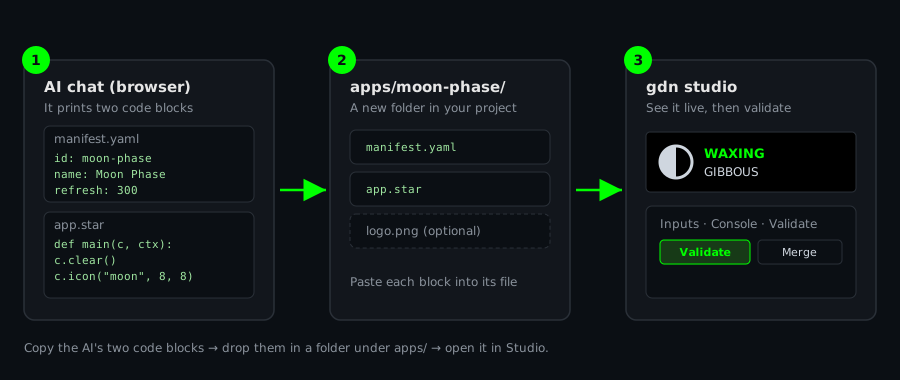
The easiest way: in Glance Dev Studio, click Create New App.
Studio makes the app folder plus starter manifest.yaml and app.star files, and
you paste the AI's two code blocks over them — no folders or files by hand. See
Create a new app.
Doing it by hand instead:
- Make a folder under
apps/, lowercase-with-hyphens, e.g.apps/moon-phase/. The folder name should match theid:in the manifest the AI wrote — if they differ, change theid:to match the folder. - Create the two files inside it and paste the matching block into each:
manifest.yamlgets the settings block,app.stargets the code block. Any plain-text editor works (VS Code recommended). The names must be exactlymanifest.yamlandapp.star, notmanifest.yaml.txt— Windows hides extensions by default, so turn on "File name extensions" in File Explorer's View menu to check. - Add any image the AI mentioned. If the code references a file like
c.image("logo.png", …), save that PNG into the same folder and list it underassets:in the manifest. Details: Working with images. - Open it in Studio (or run
gdn studio apps/moon-phase) and you'll see the live panel. When it looks right, click Validate, then Validate & Submit to open a pull request.
If the panel is blank or an input misbehaves, copy the exact message from Studio's
console (or from gdn check apps/<id>) back into the chat and say "this is the
error, please fix the code." The Examples & lessons
page lists the mistakes that come up most.
Always preview it. The mistakes assistants make most are lowercase text (fonts are
uppercase-only, so lowercase draws nothing) and reading an http.get response as
resp.status_code instead of resp["status_code"] — the response is a dict, so the
dotted form errors. gdn check apps/<id> and the live preview catch both in seconds.
Keep going
- Connect your AI (MCP): the connected workflow — the AI renders, sees, fixes, and validates by itself.
- Design guidelines: how a good Glance app looks — the rules the AI follows, and the ones you'll want to override.
- Working with images: importing, sizing, and placing a logo or icon, including dragging it into place in Studio.
- Examples & lessons: real prompts for popular app types, and the mistakes to avoid.
- Example: top 5 movies: a full, iterative build against a real API, from plain list to polished poster card.