Choosing your AI tool
There are two families of AI assistant, and both can build a GDN app. Pick based on how much setup you want and whether you'd like the AI to work inside your project or just hand you the files.
| In the browser | On your computer | |
|---|---|---|
| Examples | ChatGPT, Claude | Claude Code, OpenAI Codex CLI |
| Install needed | None | Yes (a one-time setup) |
| Can it read your project? | No, you paste context | Yes, it reads and writes your files directly |
Can it run gdn check / preview? | No, you do that | Yes, it can run commands for you |
| Best for | Getting started, one app at a time | Bigger apps, editing many files, doing it end-to-end |
If you're not sure, start in the browser. There's no setup, and everything on the previous page works there. Move to an installed tool when you want the AI to do the file-wrangling and previewing for you.
In the browser (easiest, no install)
You already have this if you have a web browser.
- ChatGPT: chatgpt.com
- Claude: claude.ai
How it works: paste the cheat-sheet,
describe your app, and the assistant prints your manifest.yaml and app.star right
in the chat. You then copy those two files into your project, covered in
Getting the AI's files into your project below.
The easiest way to get the folder ready is to click Create New App in
Glance Dev Studio first. It makes the app folder plus starter
manifest.yaml and app.star files for you, so you just paste the AI's code over them,
no folders or files by hand. Studio is the more user-friendly option. See
Create a new app.
End your message with "Give me both files as separate code blocks I can copy." You'll
get a clean manifest.yaml block and a clean app.star block instead of one merged
blob.
On your computer (most powerful)
These tools run in a terminal and can read your whole GDN project, write the two
files into apps/<id>/ themselves, and even run gdn check and the preview for you.
More setup up front, far less copy-paste after.
Claude Code
Anthropic's coding assistant. It's the best fit for GDN because it can read the reference docs, look at existing apps, write your files, and preview, in one conversation.
- Download & install: claude.com/claude-code
- Watch how it works: search YouTube for "Claude Code tutorial"
Once it's installed, open a terminal in your GDN folder and just ask:
Read the GDN docs and apps/world-clock, then build me a new app in apps/moon-phase
that shows tonight's moon phase as a big icon with a label. Then run gdn check on it.
OpenAI Codex
OpenAI's coding agent. It comes in two forms, and you do not need the command-line version:
- In the browser / cloud: part of ChatGPT; you describe the app and it writes the files, same as any browser assistant. Get them into your project with the steps below.
- Codex CLI: a terminal tool like Claude Code, if you prefer working locally.
- Learn more: search YouTube for "OpenAI Codex tutorial".
Whichever local tool you use, start the conversation with "Read the GDN docs at the
getting-started site and the apps in apps/ before writing anything." Grounding it
in real examples beats the cheat-sheet alone.
Getting the AI's files into your project
A browser assistant (ChatGPT, Claude) prints the two files in the chat; you then get them
into a folder under apps/. An installed tool like Claude Code writes the
files for you, so you can skip this part.
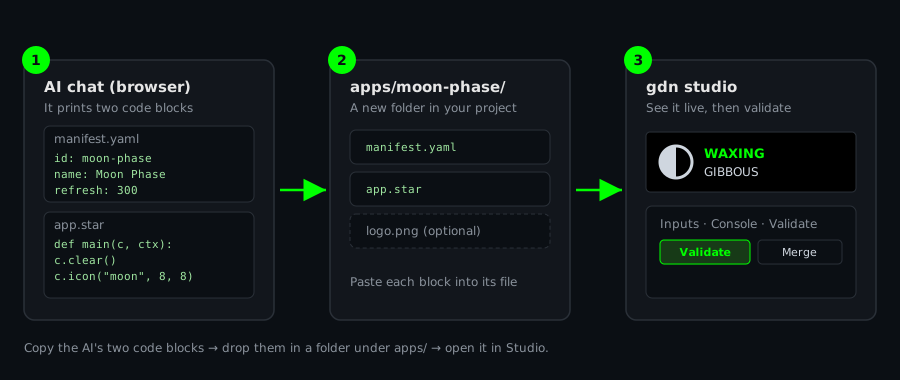
You don't have to make the folder or the two files by hand. In
Glance Dev Studio, click Create New App and it makes the app folder
plus starter manifest.yaml and app.star files for you. Then paste the AI's two code
blocks over the starter files. Studio is the more user-friendly option; the manual steps
below are the alternative if you'd rather do it yourself. See
Create a new app.
Step 1: make a folder for your app
Inside your project's apps/ folder, create a new folder named for your app, using
lowercase letters and hyphens:
apps/moon-phase/
That folder name should match the id: in the manifest the AI wrote. If they differ,
change the id: to match the folder.
Step 2: create the two files
Inside apps/moon-phase/, make two empty text files and paste the matching code block
into each:
| File | Paste in… |
|---|---|
manifest.yaml | the manifest / settings block |
app.star | the code / drawing block |
Any plain-text editor works, VS Code (recommended, free), Notepad (Windows), or TextEdit
(Mac, set to Plain Text). Just make sure the files are saved as exactly manifest.yaml
and app.star, not manifest.yaml.txt.
Windows sometimes hides extensions and saves app.star.txt by accident. Turn on
"File name extensions" in File Explorer's View menu so you can see and fix the
real name. The files must be exactly manifest.yaml and app.star.
Step 3: add any image the AI mentioned
If your app uses a picture (a logo, an icon), the AI's code will reference a file like
c.image("logo.png", …). Save that PNG into the same folder, next to app.star, and
make sure it's listed under assets: in the manifest. Full details on the
Working with images guide.
Your finished folder looks like this:
apps/moon-phase/
├─ manifest.yaml
├─ app.star
└─ logo.png        # only if your app draws an image
Step 4: open it in Studio
Open the app in Glance Dev Studio (or run gdn studio apps/moon-phase) and
you'll see the live panel. If something's off (a common one: the AI wrote lowercase text,
which draws nothing), fix it right there, or paste the error back to the AI. When it looks
right, click Validate, then Validate & Submit to open a pull request.
If the panel is blank or an input misbehaves, copy the exact message from Studio's console
(or from gdn check apps/moon-phase) back into the chat and say "this is the error,
please fix the code." The Examples & lessons page lists
the mistakes that come up most.
Either way, the rules are the same
No matter which tool you pick, the platform rules from the
cheat-sheet still apply:
uppercase fonts, still frames, draw with c.*, and check status_code on any
http.get. The Examples & lessons page shows what good
prompts and results look like.