Inputs & configuration
Inputs are the settings a person fills in when they add your app in the Glance
app: a zip code, a color, a team. Each input you declare in the manifest becomes a
control the user sees on the app's setup screen, and its value shows up in your
code through ctx.inputs.
What the user actually sees
When someone adds your app in the Glance app, each input you declare becomes a
control they fill in. For example, the Traffic Tracker's two
free-text inputs (a start and an end zip code) look like this in the app:
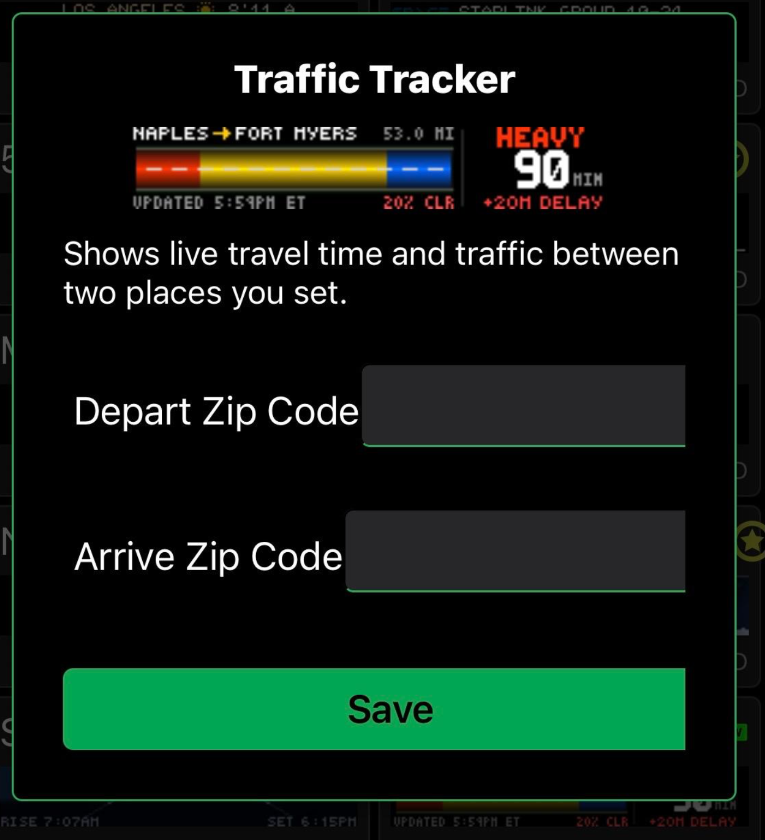
free-text inputs become the two text boxes here. This is what your users see when they add your app.The manifest that produces those two boxes:
inputs:
  - key: depart_zip           # your code reads ctx.inputs["depart_zip"]
    app_input_type: free-text # a plain text box
    type: string
    label: Depart Zip Code    # the label the user sees
    default: "34102"
    help: Where your drive starts.
  - key: arrive_zip
    app_input_type: free-text
    type: string
    label: Arrive Zip Code
    default: "33901"
    help: Where your drive ends.
Anatomy of one input
  - key: zip                  # the name your code reads: ctx.inputs["zip"]
    app_input_type: free-text # the control the user sees (see below)
    type: string              # the data type
    label: Zip code           # the label next to the box
    default: "90210"          # pre-filled value
    help: A US zip code.      # hint shown under the box
Read it in app.star
Use .get(key, fallback). It returns the fallback if the value is missing, so your
app never renders a blank panel:
def main(c, ctx):
    depart = ctx.inputs.get("depart_zip", "34102")
    c.text(depart, 4, 12, font="5x7", color="green")
Two habits worth building:
- Always pass a fallback.
ctx.inputs["zip"]works too, but.get()with a default means a blank or missing value degrades gracefully instead of erroring. - Uppercase text before drawing. The bitmap fonts have no lowercase letters, so
use
c.text(city.upper(), ...). Otherwise a user who types "boston" sees nothing.
Pick the right control
app_input_type decides the widget. There are eight: a text box, a dropdown, a
multi-select, a checkbox, two date pickers, a color wheel, and a dedicated
API-key field.
A dropdown needs a choices list:
  - key: units
    app_input_type: dropdown
    type: choice
    label: Units
    default: metric
    choices: [metric, imperial]
On an app that refreshes more often than every 15 minutes, a color setting is a dropdown of named colors too, not a color picker; under 5 minutes every setting is a pick-list. See Refresh and inputs.
  - key: accent
    app_input_type: dropdown
    type: choice
    label: Accent color
    default: amber
    choices: [white, red, orange, amber, green, skyblue, purple, pink]
API keys
Some apps pull from a data provider that needs a key (a traffic or weather service,
for example). An API key is not a free-text input: it has its own setting,
app_input_type: api-key. That setting is what tells Glance to encrypt the key —
a key collected through a free-text input is not encrypted and may not work at
all:
  - key: apikey             # no underscores or hyphens in an api-key key name
    app_input_type: api-key # required for keys — this is what encrypts the value
    type: string
    label: API key
    help: Paste the key from your provider account.
Name the key without underscores or hyphens — apikey, not api_key or
api-key. Those two characters are the delimiters of the descriptor GDN wraps
around an api-key value on its way into http, so they can't appear in the key
name itself. A guard enforces this: validation rejects an api-key input whose
key contains _ or - before the app can ever ship.
The name is not what protects the key, though — only app_input_type: api-key
does. GDN has checks in place to work out whether a value handed to http came
from an api-key input or a free-text one, but it is your responsibility to
select api-key when you add the input.
Your code reads it like any other input and passes it to
http.get as a header or query parameter, whichever your
provider expects:
def main(c, ctx):
    key = ctx.inputs.get("apikey", "")
    resp = http.get("https://api.example.com/v1/data",
                    headers = {"x-api-key": key})
A key a user enters into an api-key input is encrypted on entry and stays
encrypted in transit and at rest: the encrypted key is sent to the GLANCE, and it
is decrypted only on Glance's servers, at render time, when the GDN host makes the
network request on your app's behalf. It is never written into your app code. None
of this protection applies to a key entered through a free-text input.
See the Bitcoin price example for a full app that uses an API key and parses a live JSON response.
Adding a setting to an app you already made
You picked your starting settings when you created the app, but you're not stuck with
them. In Glance Dev Studio, the Your app's settings card has a
+ Add setting button: give the setting a name, a label, and a type, and Studio
writes the YAML into manifest.yaml, saves, and the new control appears in the panel
below — no hand-editing.
Two things the button enforces:
- Names are letters and digits, starting with a letter.
tzoffset, nottz_offset. Underscores and hyphens are the delimiters GDN uses internally, so the button won't accept them. - Names must be new. If a setting with that name is already in your manifest, the button refuses it rather than quietly overwriting what's there. That's usually a sign you want the next section.
You can always edit manifest.yaml directly instead — it's one of the two tabs in
Studio, right next to your code, with the live preview beside it. Changing an existing
setting's label, default, or choices is a manifest edit; there's no dialog for it.
Re-using a setting you took out of your code
A common tangle: the setting is still declared in manifest.yaml, you deleted the line
that read it from app.star, and now you want it back. + Add setting won't help —
it'll tell you the setting already exists, because it does.
Nothing is broken, and nothing needs re-declaring. A setting is connected to your app by one thing only: your code reading its key. Put that line back and the setting is live again:
def main(c, ctx):
    team = ctx.inputs.get("team", "LAL")    # this line is the whole connection
    c.text(team.upper(), 4, 12, font="5x7", color="amber")
You don't have to type it from memory:
- Studio writes it for you. A setting your code doesn't read is marked
not used in code in the settings panel, with a Use it in my code button that
inserts the
ctx.inputs.get(...)line at the top of your first page function. See See it live. - Autocomplete. Type
ctx.inputs.get("in the editor and Studio offers every setting your manifest declares. (Tick Autocomplete in the toolbar if it's off.)
If you meant to drop the setting rather than re-use it, delete it from manifest.yaml
too. Leaving it declared but unread is an error, not a warning:
setting `team` is declared but never used in app.star
(read it with ctx.inputs.get("team"), or remove it from the manifest)
Validate fails on it and so does the publish check, because a setting a user fills in that changes nothing on the panel looks like a broken app.