See it live
The right half of Studio is a live preview of your actual LED panel. It updates every time you save, so you can see exactly what your sign will look like.
The panel
Each page of your app is shown at true size, exactly what the LED sign displays, pixel for pixel:
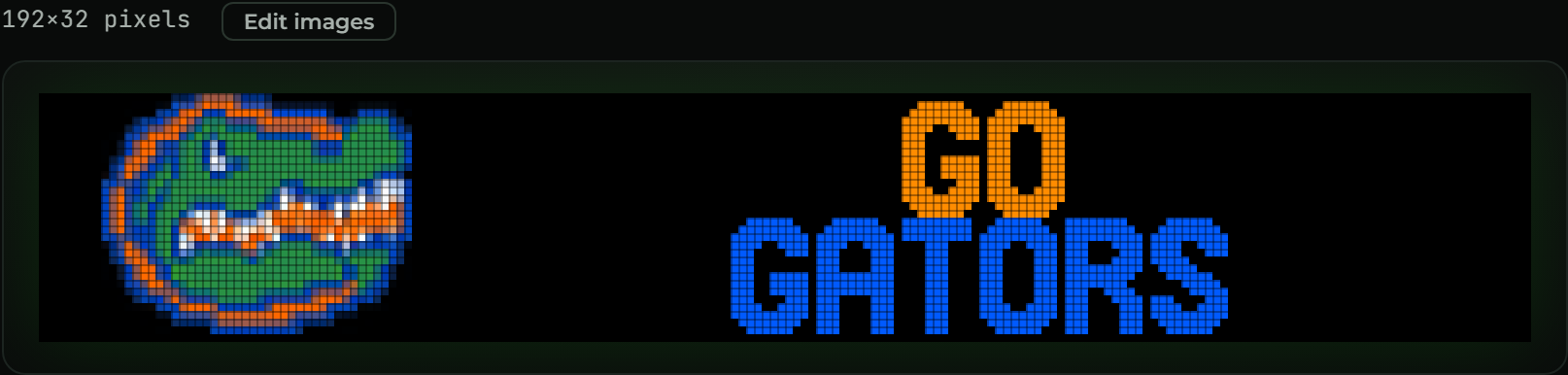
Turn on Pixel grid (top of the preview) to see the individual pixels while you line things up.
Preview your app in action
SCROLL is dynamic: your app plays in a moving sequence with other apps, and on the wider panels it's on the glass at the same time as its neighbors. The Preview your app in action card, under the pages, shows exactly that — your app scrolling right to left between a stock app before it and another after it, drawn as round LEDs, on every panel size:
| Bezel | What it shows |
|---|---|
| V2 · 64 | The page-flip product: each frame dwells about three seconds, then the panel updates to the next. Appears only for 64-wide apps. |
| SCROLL · Studio 192 | Your app in the stream. Judge it here — if it reads well on the Studio panel, it looks good on every size. |
| SCROLL · Pro 384 | The same stream, with a neighbor sharing the glass. |
| SCROLL · Premier 640 | Two neighbors on the glass at once. |
It uses the same render as the live preview, so it updates on every save. If a page
changes with the time (a per-minute rotation, say), the sequence shows those variants
as turns — RATES 1/3, 2/3, 3/3 — the way the real panel does across
refreshes.
The controls:
- ¼× · ½× · 1× · 2× — scroll speed (on the V2, the dwell time).
- Pause / Play — freeze the stream to inspect a seam.
- Hide neighboring apps — your app alone, when you want to focus on a page.
- Mark app seams — amber ticks at every app boundary, so you can see whether your edges are padded or are merging into the app next door.
- Click any bezel to enlarge it full-screen (
escor click outside to close).
Use it to check the three things that only show up in sequence: that the text stays readable as it moves (people watch from 10–30 feet), that nothing merges with the apps before and after yours, and that your app identifies itself when it enters the glass. Those are the #1 scroll rule and the identity rule in the design guidelines. Click Hide on the card if you don't need it.
Your app's settings
If your app has inputs, they show up here as a form. Change a value and the panel updates as you type, so you can see how it looks with a different city, color, or number without editing any code:

This is the same form people will fill in when they add your app, so it's a good way to check that every setting looks right.
"Not used in code"
A setting shows up here because it's declared in manifest.yaml — whether or not your
code reads it. One that your code never reads does nothing when a user fills it in, and
Validate fails the app for it, so Studio marks it:
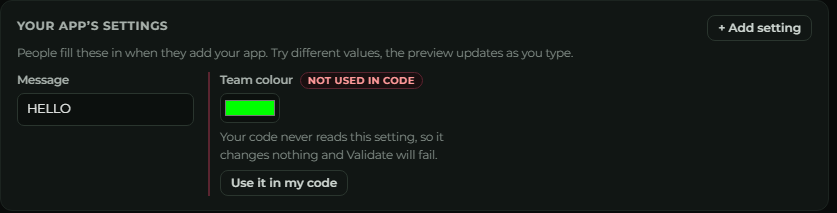
Click Use it in my code and Studio writes the missing line into app.star for you:
teamcolour = ctx.inputs.get("teamcolour", "#00FF00")
It goes at the top of your first page function; draw with it from there. If you meant to
drop the setting instead, delete it from manifest.yaml. See
Inputs & configuration.
Time travel
Some apps change with the time, a countdown, a clock, a "good morning" message. Instead of waiting for the real clock, set any date and time and see how your app looks then:

Type a date and time to jump to that moment, or click Now to snap back to the real time. Useful for checking a countdown's final day, or an "event is over" message.
Save it as an image
Click Save PNG in the preview controls to download the current render as a crisp PNG, scaled up so it's easy to see and share. Each page saves as its own file. Handy for a README, a forum post, or showing someone before you publish.
Find a pixel
Hovering the panel shows the exact x, y position under your mouse (top-right of the preview). Use it to find the coordinates for where you want to place something.
To place a picture without reading off numbers at all, drag it right on the panel with the Place image tool. See Working with images.