Toolbox
Can't remember a helper's name, or which number is which? The Toolbox is a picker. It shows every drawing helper and every font with a live preview, and clicking one drops the code into your app for you, so you write less from memory.
Open it with the green Toolbox button above the code editor, or press Ctrl + B
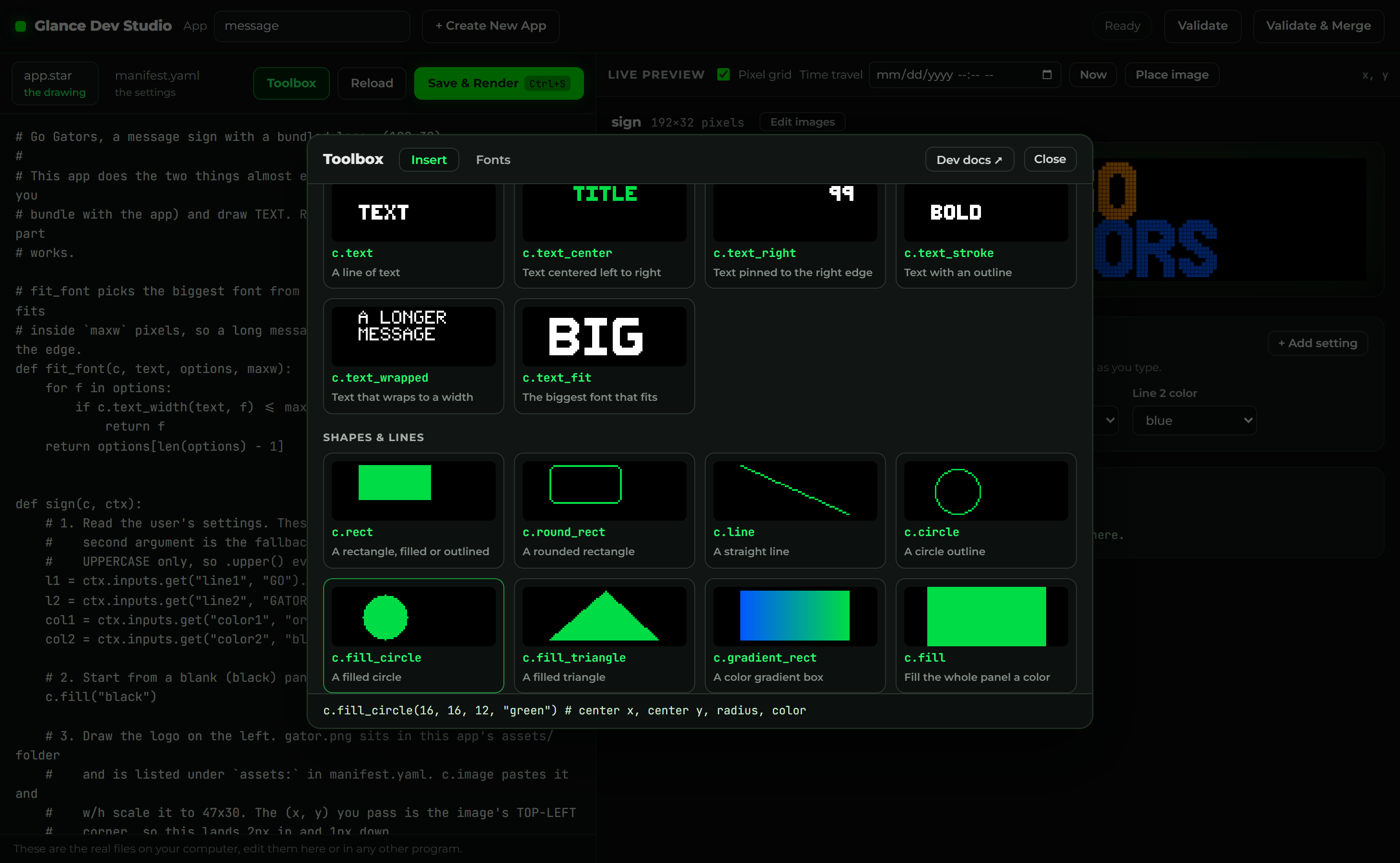
Insert tab: drawing helpers
The Insert tab is a grid of tiles grouped by what they do (Text, Shapes & lines, Charts & data, Widgets, Images & art, Layout). Each tile shows a small LED preview of exactly what that helper draws, its name, and a one-line description.
-
Hover a tile and the bar at the bottom shows the code it adds, with every argument labeled:
c.fill_circle(16, 16, 12, "green") # center x, center y, radius, color -
Click a tile and it drops that line into
app.starat your cursor, comment and all, and highlights the first value so you can start typing your own. Press Save & Render to see it.
Because each preview is drawn by the real engine from the exact code it inserts, what you see is what you get.
Icons tab
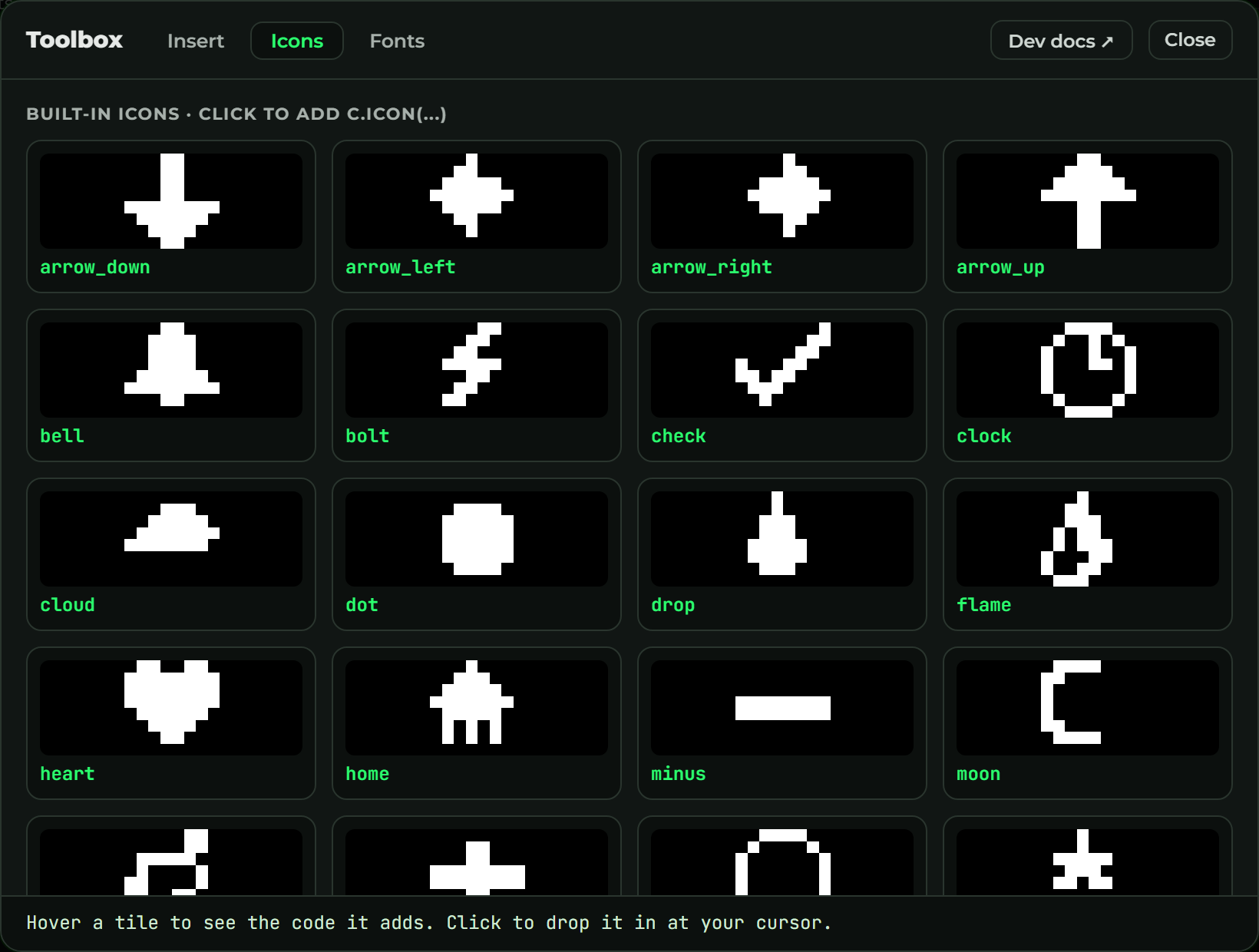
The Icons tab shows every built-in icon (c.icon(...)) with a preview, so you never
have to guess a name. Click one and Studio drops a c.icon("heart", 2, 2) line in at your
cursor, ready to position.
Want your own artwork instead of a built-in icon? Draw it with the Pixel art editor, or import a PNG.
Fonts tab
The Fonts tab lists all 37 bundled fonts, grouped by size, each shown in its own
lettering. Click a row to add a c.text(...) line in that font, or click the
font="7x12" chip to drop just that setting into a line you're already writing. Fonts that
only contain numbers are tagged so you know.
Dev docs
The Dev docs link opens the full documentation site at glance-led.dev.
The Toolbox is the fastest way to learn the drawing API and helper functions: browse the tiles, drop one in, and read the comment it leaves to see what each value does.