Write your code
The left half of Studio is where you edit your app. It's a code editor with color highlighting, strings, comments, and drawing calls are colored so the code is easy to read, and two tabs, one for each of your app's files.
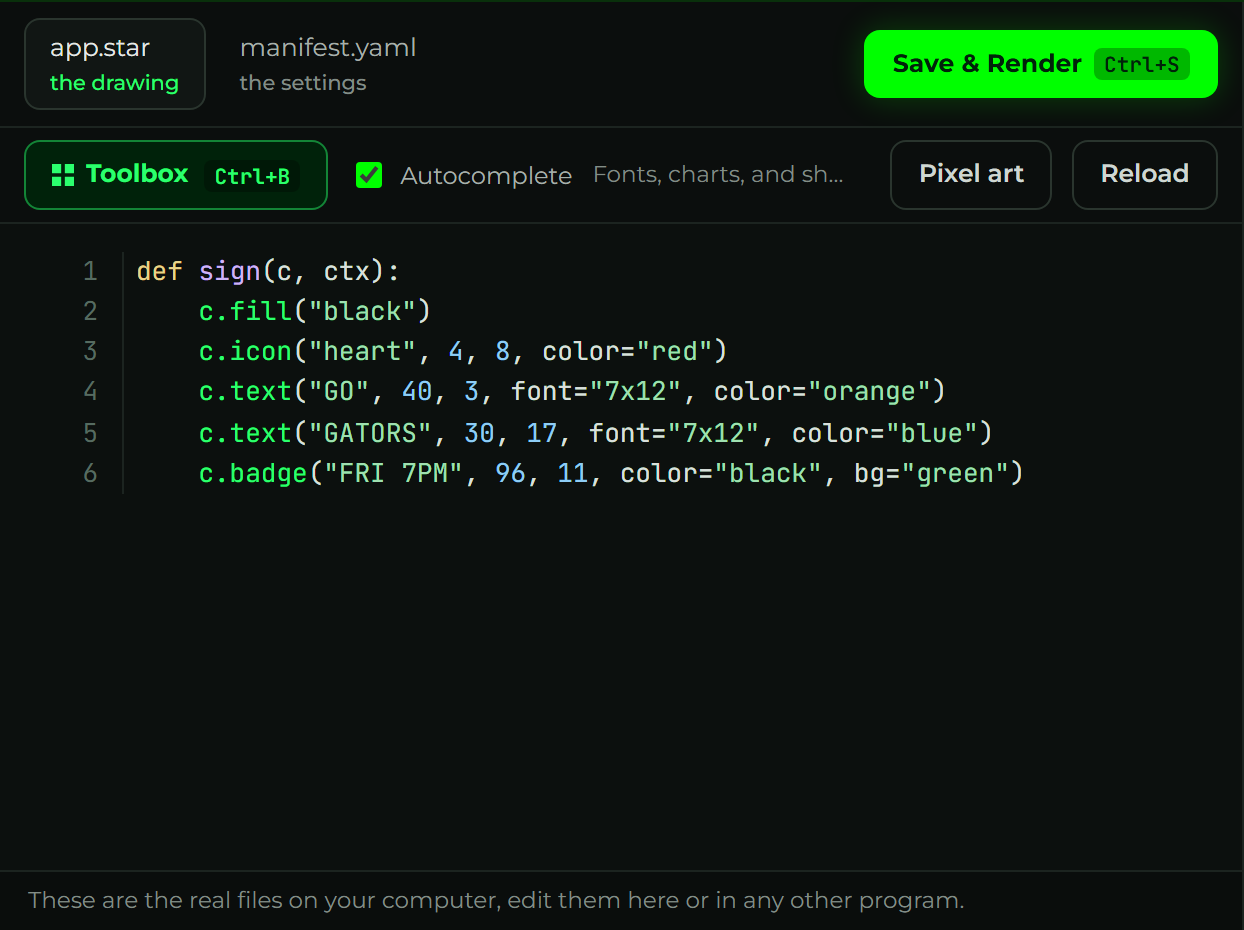
The two tabs
app.star, the drawing. The code that draws your panel. This is where you spend most of your time.manifest.yaml, the settings. Your app's name, size, how often it refreshes, and the inputs people fill in.
Click a tab to switch between them. For what goes in each file, see App fundamentals.
Add code without typing it
Don't want to write from memory? Click Toolbox (or press Ctrl + B) above the editor to browse every font and drawing helper with a live preview, and drop the code in with a click, comments and all. See Toolbox.
Suggestions as you type
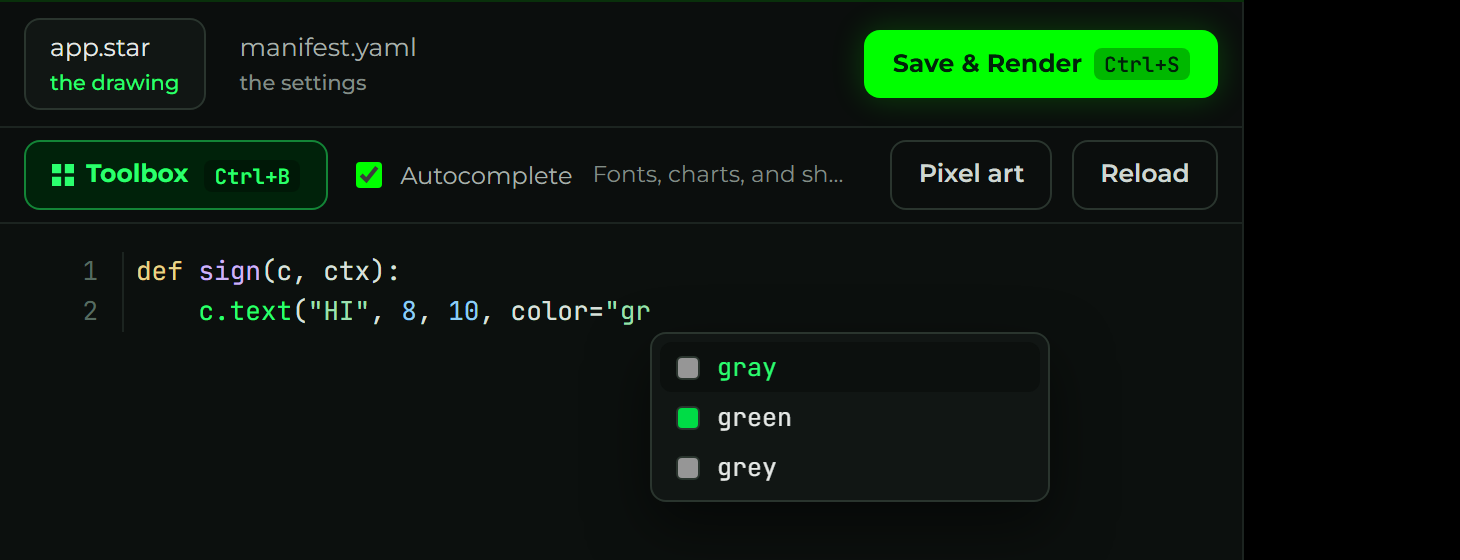
Turn on Autocomplete (the checkbox next to the Toolbox) and Studio suggests as you go:
c. lists the drawing helpers, font=" lists the fonts, color=" lists the named colors
with a swatch, and ctx.inputs.get(" lists your app's own settings. Use the arrow keys and
Tab or Enter to accept, Esc to dismiss. Uncheck it any time.
Draw pixel art
Click Pixel art above the editor to open a grid painter. Paint with a color palette and
Studio writes the drawing code into app.star for you, a c.bitmap(...) for one color or a
c.sprite(...) for several. Put your cursor on an existing one and click Pixel art again
to edit it. It's saved as code, so it travels with your app, with no separate file. More in
Working with images.
Mistakes are underlined
If a line has a syntax mistake, like the wrong indentation, Studio underlines it in red and explains it at the bottom of the editor, before you even render:
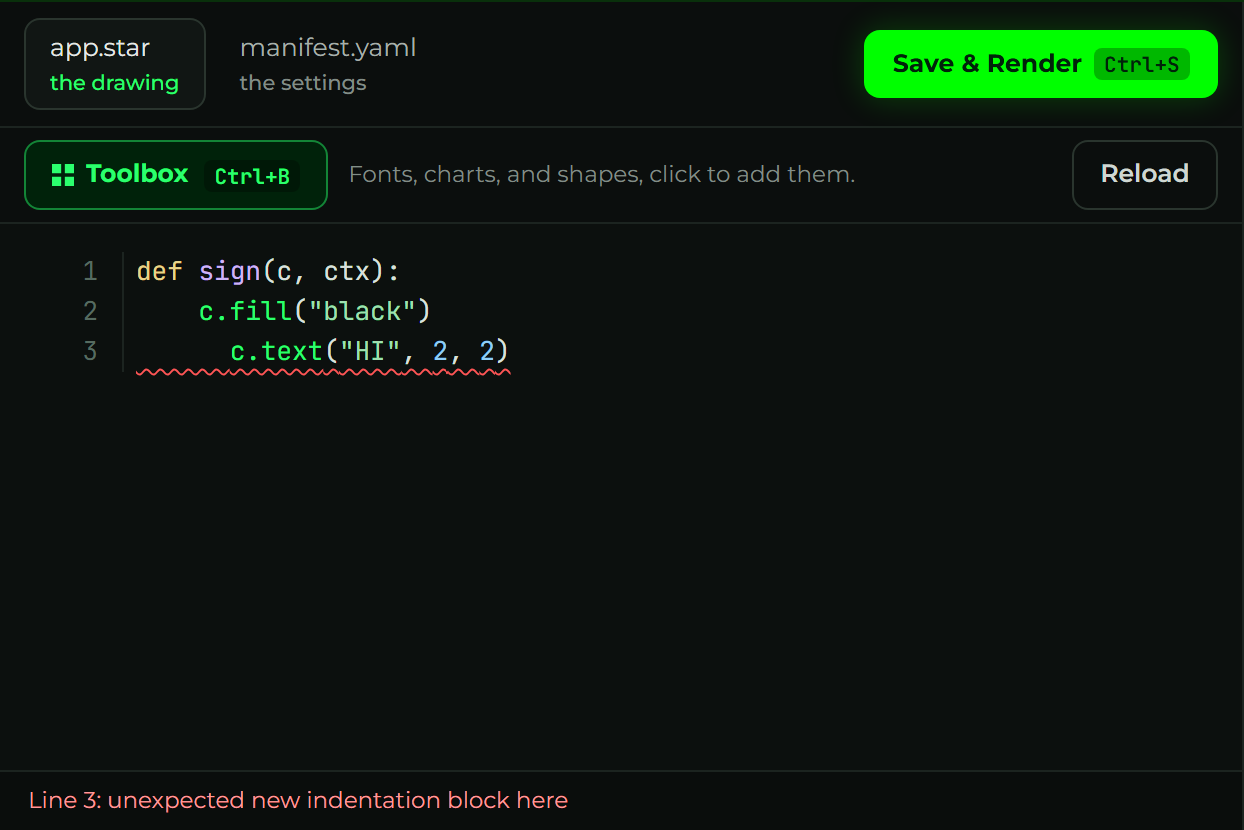
Fix the line and the underline clears itself. (Starlark, the language app.star is written
in, cares about indentation, so line things up under the def.)
app.star is Starlark, not Python
app.star looks like Python, but it's Starlark, a safe, sandboxed dialect. That's what
keeps every app fast and secure to run, but it means a few Python things don't work:
- No
import. You can't import modules, if you try, you'll see "Parse error: cannot use reserved keywordimport". There's noos,sys,datetime,random,requests, or any other Python library. - No file, network, or system access from your code directly. To pull data from the web,
use the built-in HTTP helper, see HTTP requests. For the current
date and time, use
ctx.nowinstead ofdatetime, see Handling time. - You don't need imports anyway: everything is handed to your page function,
c(the canvas and all itsc.*drawing calls) andctx(ctx.inputs,ctx.now).
So write plain functions that draw with c and read from ctx, and leave import out
entirely.
Save & Render
When you've made a change, click Save & Render (or press Ctrl+S / Cmd+S). Studio saves the file and updates the live panel on the right at the same time, so you see the result immediately.
Reload throws away unsaved edits and re-reads the files from disk, handy if you also edited them somewhere else.
If Save & Render fails with "Couldn't save: [Errno 13] Permission denied" and the path
starts with C:\Windows\System32\..., your app is in a protected system folder and Studio
can't write there. This happens when the repo was cloned from an administrator terminal,
which opens in System32. Move the whole glance-dev-network folder to a normal place like
your Documents or Desktop, open a regular (non-admin) terminal there, and run
gdn studio again. See Install.
Studio edits the actual files in your apps/<name>/ folder. You can flip between Studio
and any other editor (like VS Code) whenever you want, they're always in sync.